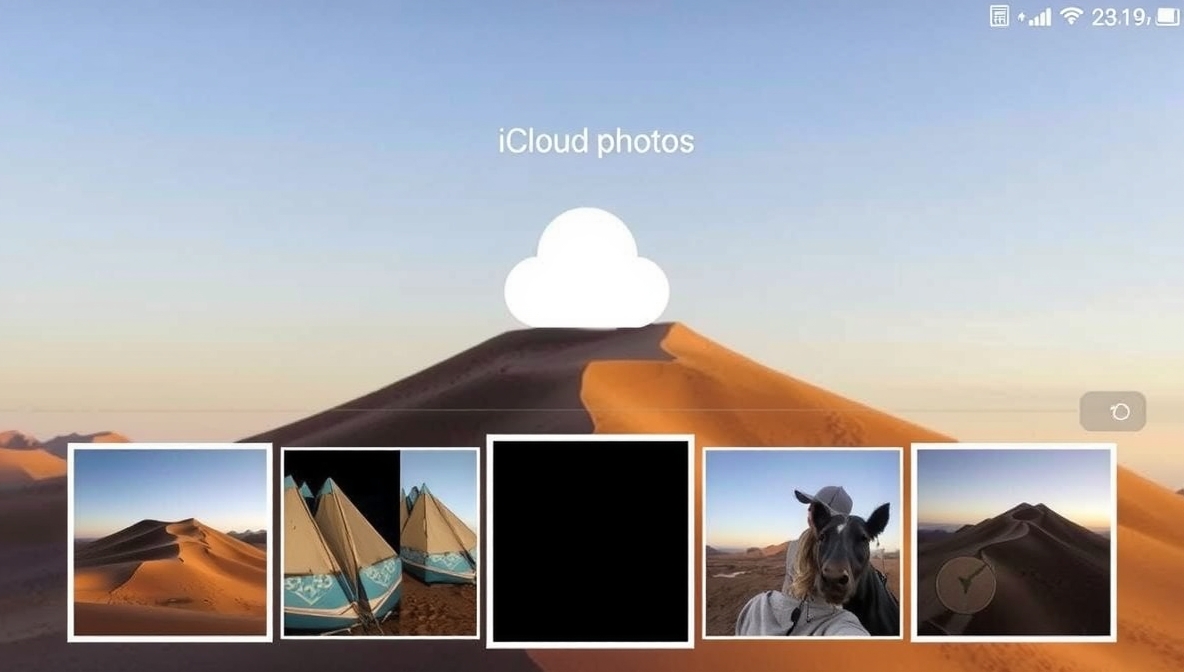
If you ever wonder how to view iCloud photos, don’t worry — it’s very easy! iCloud keeps your pictures safe online so you can see them anytime from your iPhone, iPad, Mac, or even a web browser. Many people use iCloud to store memories, but they often forget how to open or find them later. Learning how to view iCloud photos helps you keep track of your favorite pictures without losing space on your device. In this guide, you’ll learn simple ways to check, open, and manage your iCloud photos in a few easy steps. You don’t need to be a tech expert — just follow along and you’ll be able to see all your beautiful photos in minutes!
When you understand how to view iCloud photos properly, your photo life becomes much easier. You can open them on any Apple device or even on a Windows computer. iCloud Photos keeps everything safe in one place, so you can enjoy your memories without worrying about losing them. You’ll also learn how to use iCloud.com to view your photos if your phone is not with you. Whether you want to see old pictures, share them with family, or free up phone space, knowing this simple trick can save you time and trouble. Let’s explore all the easy ways to access your iCloud photos step by step.
What Does iCloud Photos Do and Why You Should Use It
iCloud Photos is a helpful tool from Apple that keeps all your pictures and videos safe online. When you take a photo on your iPhone or iPad, iCloud saves it automatically, so you never lose your memories. It also lets you see the same photos on all your Apple devices without moving them one by one. You should use iCloud Photos because it saves space on your phone and keeps everything backed up in case your device is lost or broken. It also makes sharing pictures with friends easy. With iCloud Photos, you don’t need to worry about deleting old photos — they stay safe in the cloud. It’s like having a magic photo album that you can open anytime, anywhere, as long as you have internet.
Easy Steps on How to View iCloud Photos on iPhone
To view your iCloud photos on an iPhone, open the Photos app first. Make sure your phone is connected to the internet. Then go to Settings > Your Name > iCloud > Photos, and check if iCloud Photos is turned on. Once it’s on, all your pictures will appear in the Photos app automatically. You don’t need to download them one by one — they’ll show up when you’re online. If some photos don’t appear right away, give it a few minutes to sync. You can also tap “Albums” to see different photo folders like selfies, screenshots, and videos. This way, you can find any memory in seconds without worrying about losing space on your device.
How to View iCloud Photos on iPad in a Few Clicks

Viewing iCloud photos on your iPad is almost the same as on an iPhone. Go to Settings, tap your name, then select iCloud and open Photos. Turn on iCloud Photos if it’s not already on. Once done, open the Photos app, and you’ll see all your iCloud pictures right there. You can swipe through them easily or zoom in to see details. If you have a strong internet connection, photos load faster and in better quality. You can even make albums to keep your favorite photos together. This makes it simple to enjoy your memories on a bigger screen. With these easy steps, you’ll never have trouble finding your iCloud photos again on your iPad.
Simple Guide: How to View iCloud Photos on Mac
To view your iCloud photos on a Mac, click the Apple menu, open System Settings, and then click Apple ID. Choose iCloud, and make sure Photos is checked. After that, open the Photos app on your Mac, and you’ll see all your iCloud pictures appear. They may take a few minutes to show up if you have a lot of photos. You can also make albums or search for pictures using the search bar. If you want to save space, turn on “Optimize Mac Storage” so only smaller photo versions stay on your computer. iCloud keeps the full photos safe online. It’s the easiest way to see your pictures on a big screen without plugging in your phone.
How to View iCloud Photos on a Windows Computer
Even if you use a Windows computer, you can still view your iCloud photos. First, download and install iCloud for Windows from Apple’s website. After installing, open the app and sign in with your Apple ID. Then, turn on the Photos option and click Apply. Once synced, open the File Explorer and click iCloud Photos from the sidebar. You’ll see all your pictures neatly organized. You can download them or upload new ones from your computer too. If you don’t want to install the app, you can also use iCloud.com through any browser. This gives you the same access without installing anything. It’s simple, quick, and works great for anyone using Windows.
Using iCloud.com to View Your Photos from Any Device
If you don’t have your Apple device with you, you can still view your iCloud photos using iCloud.com. Just open your web browser and go to the iCloud website. Sign in with your Apple ID, then click the Photos icon. You’ll see all your pictures and videos just like on your phone. You can download them, share them, or even delete ones you don’t need. This method is great for using someone else’s computer or when your phone is out of battery. It works on any device, like Windows laptops, Android phones, or tablets. iCloud.com keeps your photo life simple and always within reach, no matter where you are.
Conclusion
Learning how to view iCloud photos is super easy once you know where to look. It doesn’t matter if you’re using an iPhone, iPad, Mac, or even a Windows computer — your pictures stay safe and easy to find. iCloud makes sure your memories are always there for you, even if you switch devices or lose your phone.
With just a few steps, you can open, enjoy, and share your favorite pictures anytime. So next time someone asks you where your photos are, you can proudly say they’re safe in iCloud! Keep your photos backed up, stay organized, and enjoy your memories worry-free.
FAQs
Q: How do I see my iCloud photos on iPhone?
A: Open Settings, go to iCloud, turn on iCloud Photos, then check the Photos app.
Q: Can I see my iCloud photos without my phone?
A: Yes, you can log in to iCloud.com on any device to view your photos.
Q: Why can’t I see all my iCloud photos?
A: Make sure iCloud Photos is turned on and your device has internet access.